One iPad, several kids: one Apple Account or separate ones?
One iPad, several kids: one Apple Account or separate ones?
You have one iPad and two or three kids who want it. At some point you open Settings and wonder: should everyone use the same Apple Account, or should each kid get their own?
We’ve been there. The answer isn’t obvious, because Apple’s tools are built around one person per device. Here’s how the options compare and the setup that tends to work best for real families.
The short answer
- A family iPad runs one Apple Account at a time. There’s no “switch user” button like on a Mac.
- Separate accounts for each kid are useful, just not for taking turns. Switching accounts on one iPad means signing out and back in, which isn’t a daily routine anyone will keep up.
- For most families: sign the iPad into one account you control, lock it down with Screen Time, and handle each kid’s fair share with house rules or a per-child profile app.
The rest of this post explains why.
How accounts actually work on a shared iPad
A quick note on names: Apple now calls the Apple ID an Apple Account. Same thing, new label.
On an iPad, the Apple Account you sign into at the top of Settings controls iCloud, Messages, Photos, and usually the App Store. Screen Time limits on that iPad apply to the device, no matter which kid is holding it.
Two details trip parents up:
- The App Store can use a different account. In iPadOS 18 you can sign into a separate account just for Media & Purchases (Settings > your name > Media & Purchases). This changes who pays for apps. It doesn’t create separate limits for each child.
- “Shared iPad” exists, but not for families. Apple has a multi-user iPad mode for schools and businesses that use managed accounts. It isn’t available with regular family Apple Accounts.
If you want the full picture of what Screen Time can and can’t do here, we break it down in Screen Time for multiple kids on one iPad.
Option 1: Keep your own Apple Account on the iPad
This is how most family iPads start. It was Mom’s or Dad’s, and now it lives on the couch.
What works:
- Nothing to set up. Apps you already bought are there.
- You can still turn on Screen Time with a passcode the kids don’t know.
What doesn’t:
- Your stuff is on it: messages, photos, email, notes. A seven-year-old will find the group chat.
- Purchases go straight to your card unless you lock them down in Screen Time.
- You can’t manage the iPad from your phone like a child’s device.
- One limit for everyone.
Good fit if: your kids are little, the iPad mostly runs a few games and videos, and you’re willing to turn off Messages, Photos, and Mail on it.
Option 2: Sign the iPad into one child account
In this setup, the iPad belongs to a child account in your Family Sharing group. To create one in iPadOS 18: Settings > Family > Add Member > Create Child Account, then follow the steps.
What works:
- None of your personal data is on the iPad.
- You can change Screen Time settings from your own iPhone.
- Ask to Buy sends purchase requests to you. It’s on by default for younger kids.
- Apps bought by the family can be shared through Purchase Sharing.
What doesn’t:
- A child account belongs to one specific kid, with their real birthday. Your other kids are using their sibling’s account.
- Content restrictions fit one age. If your 4-year-old and your 10-year-old share it, someone is unhappy.
- Reports and limits still mix everyone’s time together.
Tip: set content restrictions for the youngest kid who uses the iPad. It’s easier to say “that app is for when you’re older” than to explain what your preschooler just watched.
Good fit if: you want your data off the iPad and you’d like to manage it from your phone. This is the option we’d pick for most homes.
Option 3: A separate account for each kid, switched by hand
On paper, this sounds the fairest. Each kid signs in, gets their limits, and signs out.
In practice, switching the main Apple Account on an iPad means signing out completely. iPadOS asks you to turn off Find My (which needs the password), may remove some data from the device, and then everything has to sync again for the next kid.
Nobody wants to do that between homework and dinner, three times a day.
Where separate accounts do make sense:
- Your kid will get their own device in a year or two. Creating the child account now keeps their apps and progress with them.
- A kid needs their own Game Center or school sign-in.
So create them if they’ll be useful later. Just don’t expect them to solve turn-taking on one iPad.
How the options compare
| Your account | One child account | Swapping accounts | |
|---|---|---|---|
| Setup effort | None | About 15 minutes | High, every day |
| Your data on the iPad | Yes | No | No |
| Manage from your phone | No | Yes | Yes, per kid |
| Ask to Buy | No | Yes | Yes |
| Separate limits per kid | No | No | Only if you switch every time |
| Realistic day to day | Yes | Yes | Not really |
What no account setup fixes
Here’s the part that frustrates most parents. Whichever option you choose, Apple’s Screen Time sees one iPad, not three kids.
- One daily limit for everyone. If the older kid uses 45 minutes, the younger one starts with what’s left.
- No way to tell whose minutes were whose. The weekly report shows the iPad, not each child.
- You become the referee. “He had it longer!” doesn’t have a data answer.
That’s why the account choice is only half the solution. The other half is how you split the time.
A setup that works for most families
- Set up Family Sharing if you haven’t already, and add yourself and your partner as parents or guardians.
- Pick one account for the iPad. A child account (Option 2) if you want your data off it. Your own account (Option 1) if you’d rather keep it simple and turn off Messages, Photos, and Mail.
- Lock down the basics in Screen Time. Set a Screen Time passcode, turn on Content & Privacy Restrictions for the youngest user, and add Downtime for bedtime.
- Split the time per kid, outside of Apple’s limit. A few ways families do this:
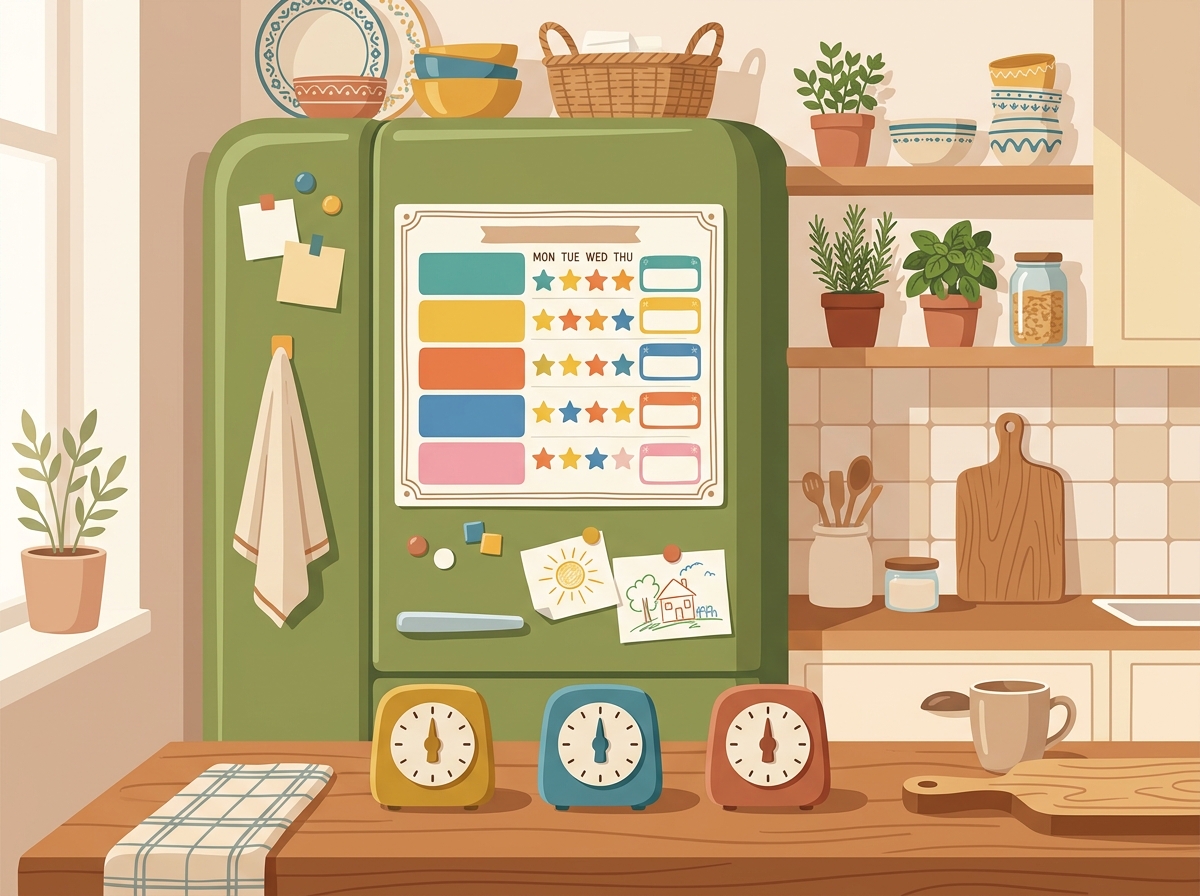
- A turn chart on the fridge. Who goes first rotates by day.
- One timer per kid, paused when they put the iPad down. A kitchen timer that keeps running while they get a snack is how fights start.
- Different amounts by age. A 5-year-old and an 11-year-old don’t need the same limit, and kids usually accept that when it’s said out loud.
- Chores that earn minutes. Unloading the dishwasher for 10 extra minutes is a deal most kids take.
- Free time for reading and school apps, so homework doesn’t eat their fun time.
We go deeper on rules and routines in how to share one iPad between siblings without the daily fight.
If you’d rather not track this by hand, OnePad Kids adds the per-kid layer on top of whichever account you use. Each child gets a profile with their own PIN, daily limit, and apps on the same iPad. Time only counts while they use their apps, they get a heads-up at 5 and 1 minutes, and their apps lock through Screen Time when time’s up. It doesn’t need any accounts and the data stays on the iPad.
A quick word on privacy
Whichever account the iPad uses, think about what’s visible on it:
- If it’s your account, turn off Messages, Mail, and Photos syncing on that iPad.
- Check which apps have access to the camera, microphone, and location (Settings > Privacy & Security).
- Tell your kids what the rules are and why. Limits work better when they’re out in the open.
Bottom line
For one shared iPad, separate Apple Accounts don’t give you separate turns. One account you control, plus clear per-kid rules, gets you most of the way. Create individual child accounts when a kid is ready for their own device. Until then, use a turn chart, a timer per kid, or an app like OnePad Kids to keep it fair.
Give each kid their own time on one iPad: check out OnePad Kids and try it free for 7 days.